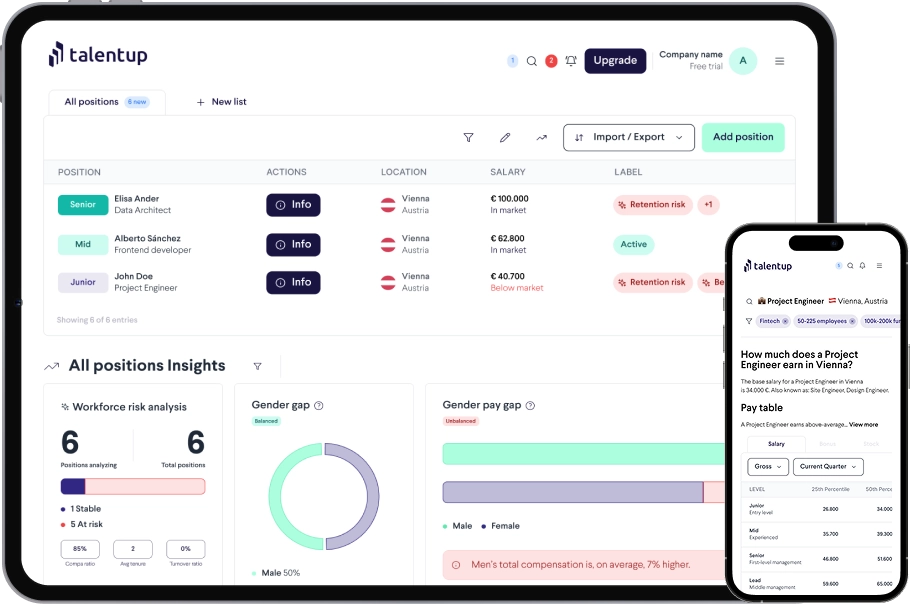
Connecting Personio to TalentUp keeps your employee data in sync automatically, so your Internal Pay Analysis always reflects your current team without manual re-uploads. This guide walks you through the setup process in Personio, which requires generating API credentials and sharing them with TalentUp.
Data Security and Privacy
All data transfers between Personio and TalentUp are encrypted. Access is restricted to the credentials you generate, and no data is shared with third parties. The integration operates under GDPR-compliant processes and respects your organization’s data governance policies.
Personio HRIS: Linking Your Account
To set up the integration with Personio, your account must have access rights to these roles:
- Account configuration > API: required to create the API key.
- Account configuration > Marketplace Integration: needed to view the API key credentials.
To verify your access:
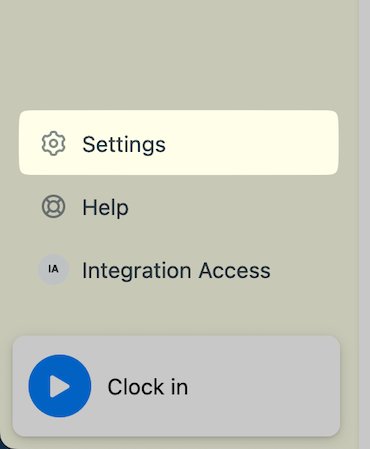
1. Click the Settings button in the sidebar.
If you cannot see this button, it may indicate that you need additional permissions.
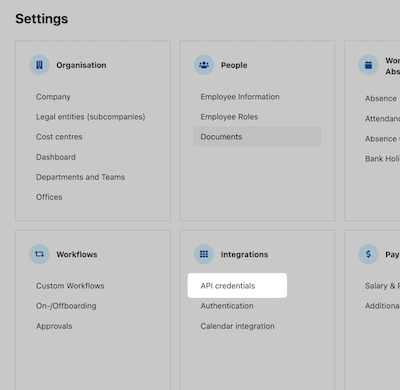
2. Confirm that the API credentials tab appears under the Integrations section in Settings.
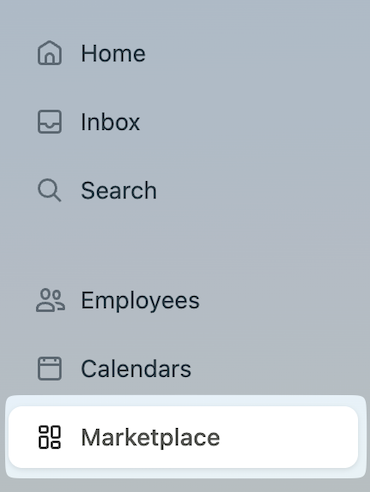
3. Click the Marketplace button in the sidebar. If you cannot see this button, it may be due to insufficient permissions.
4. Ensure you can click See connected integrations.
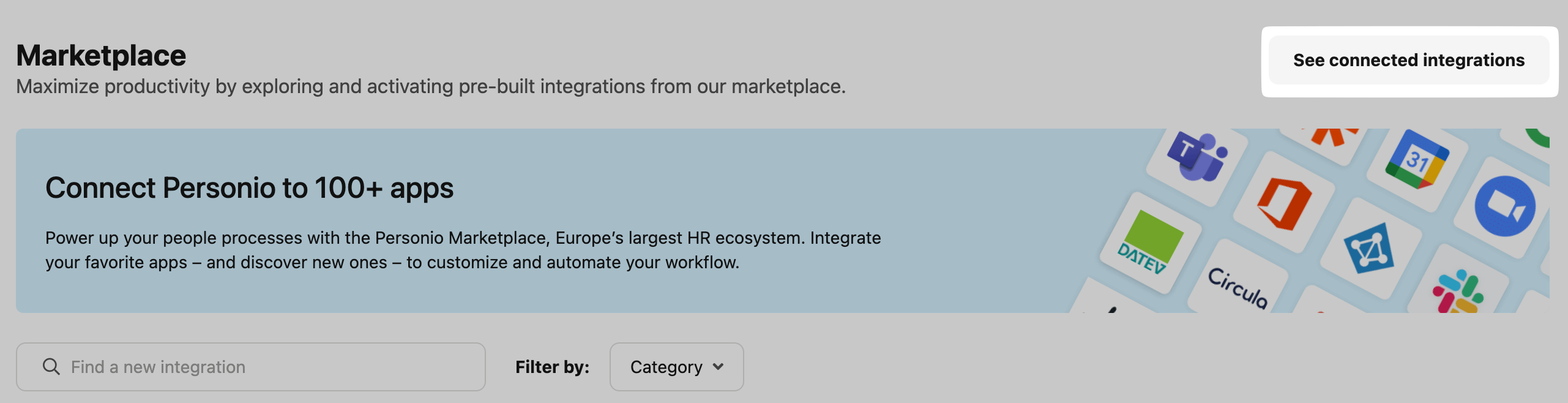
If you cannot complete any of these steps, ask a system administrator to assign the required access rights to your account before continuing.
Find Your API Domain
Your API domain is the same as the one you use to log in to Personio.
1. Open your Personio login page.
2. Your domain is visible in the browser URL bar.
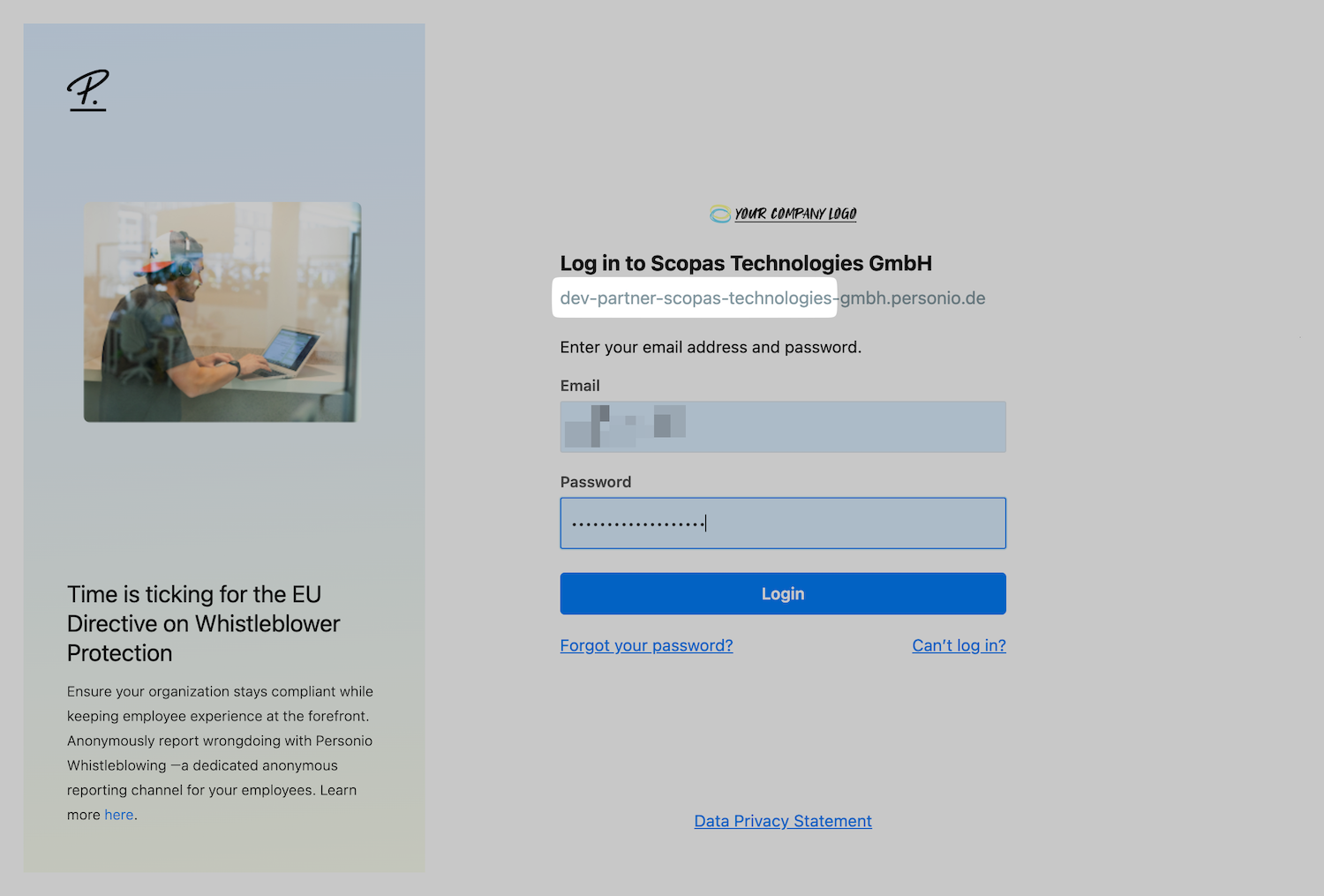
Generate Your API Credentials
1. Log into your Personio account.
2. Open the API credentials page. Use the connection guide or replace
https://

3. Click Generate new credential.
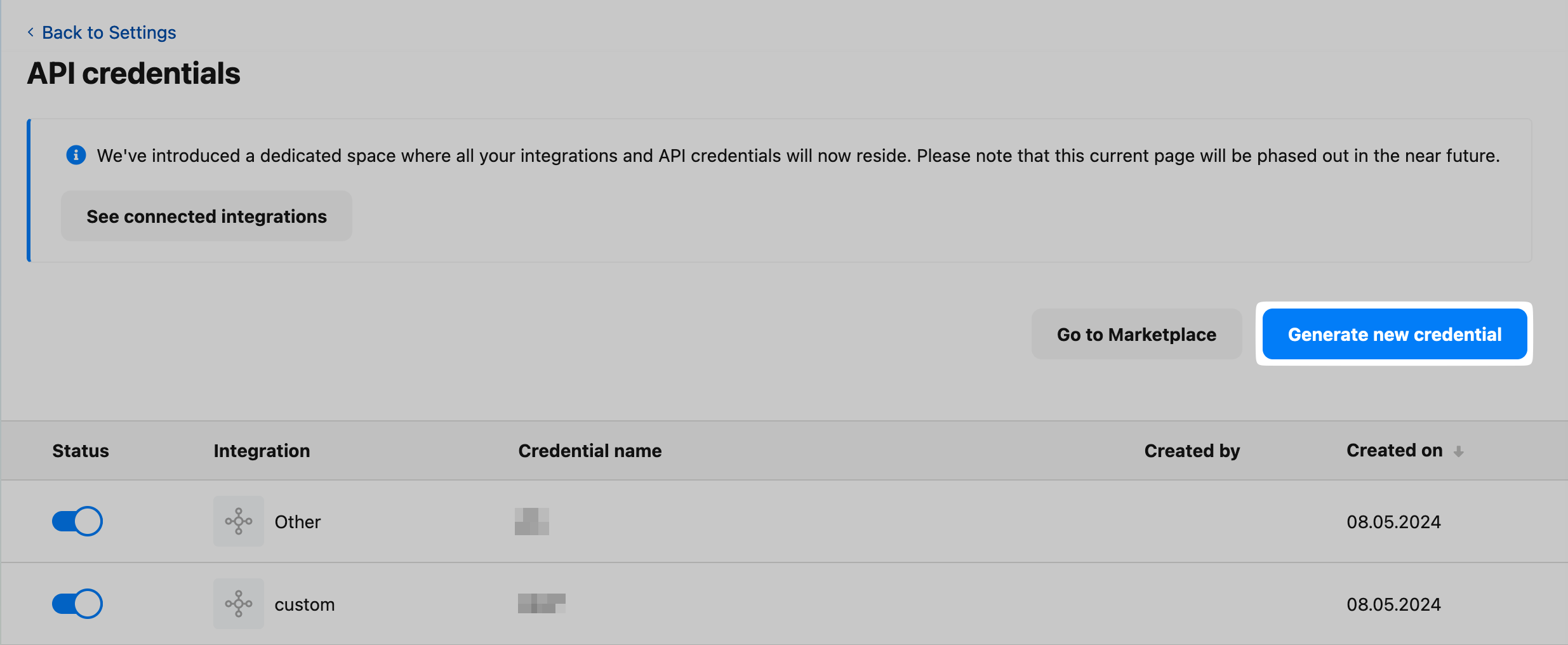
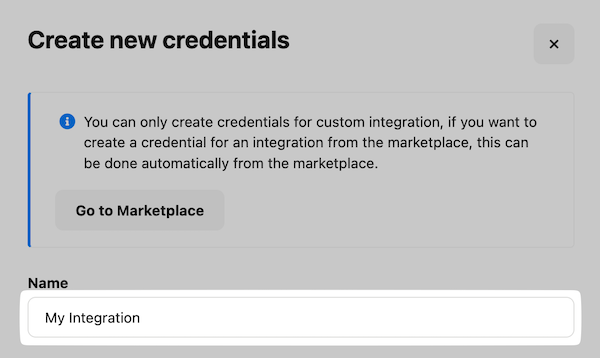
4. Enter a name for your connection.
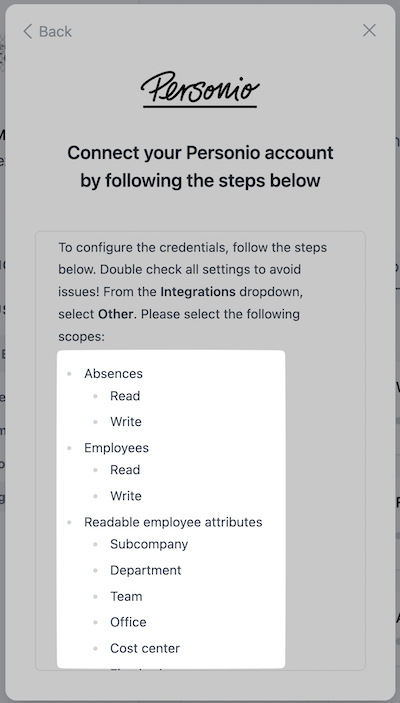
Please review the required access rights during the connection flow.
This is just an example. Check the scopes required for your integration in your flow.
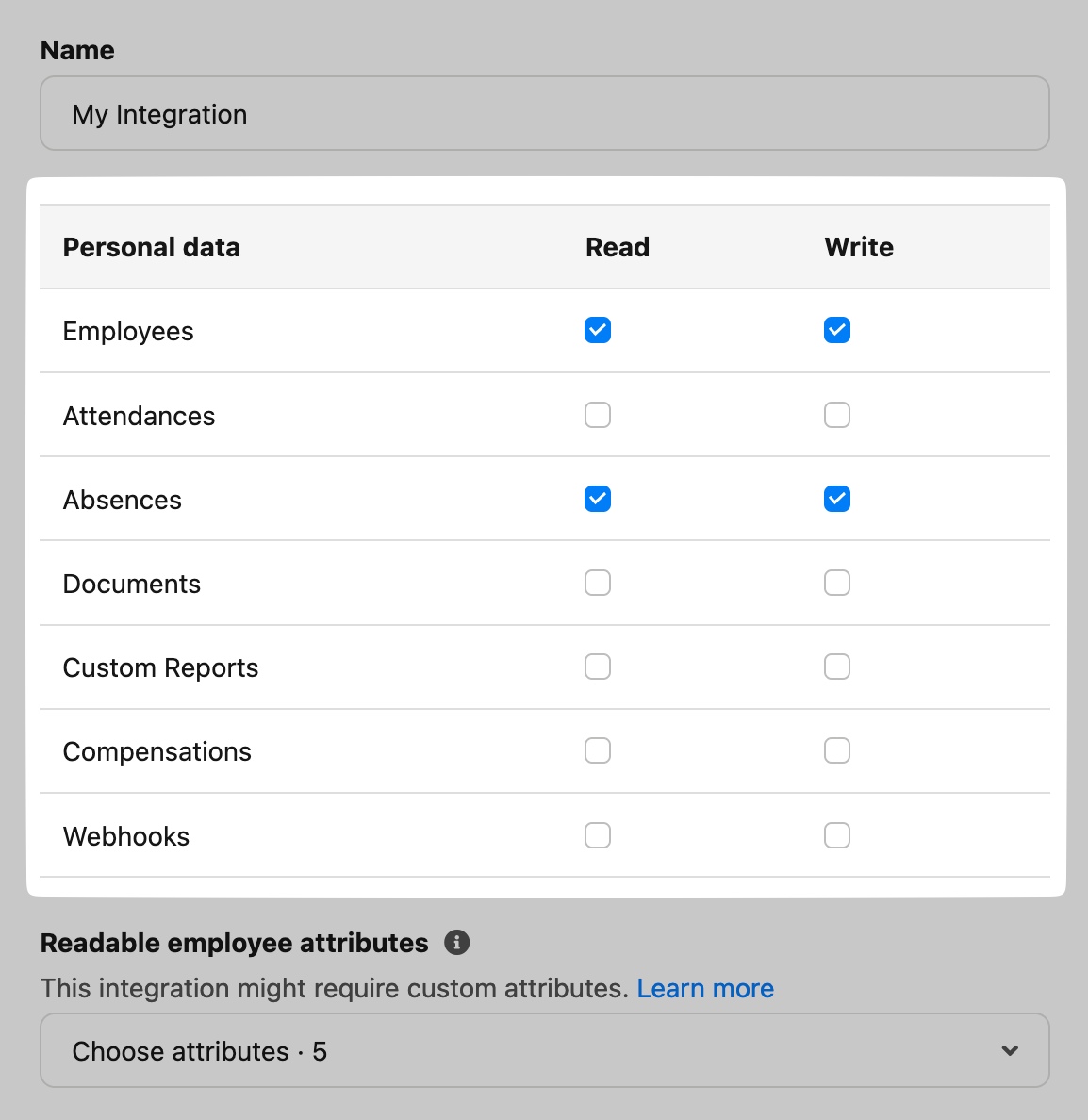
5. Enable the required access rights in Personio:
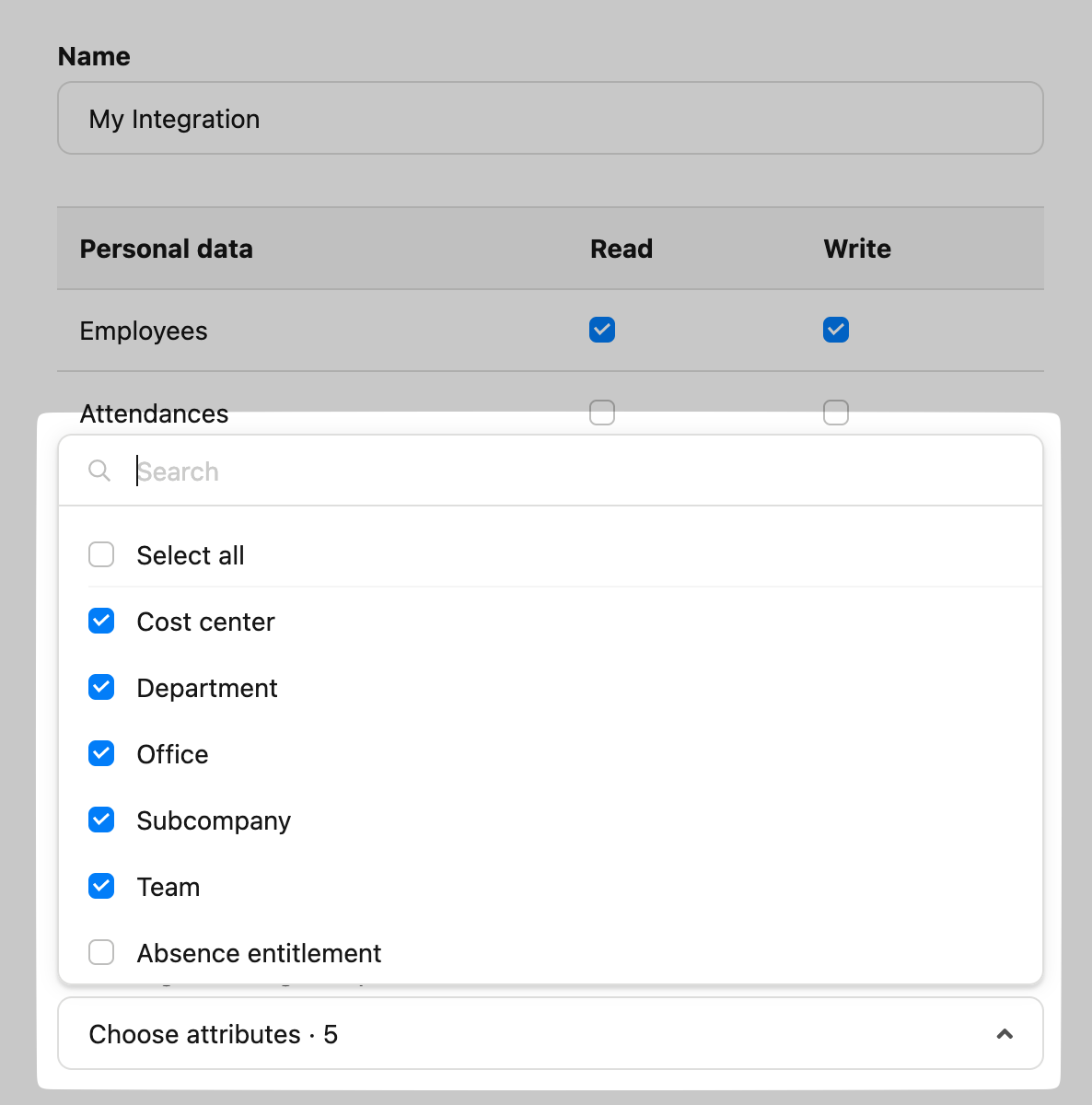
6. Enable the necessary readable employee attributes:
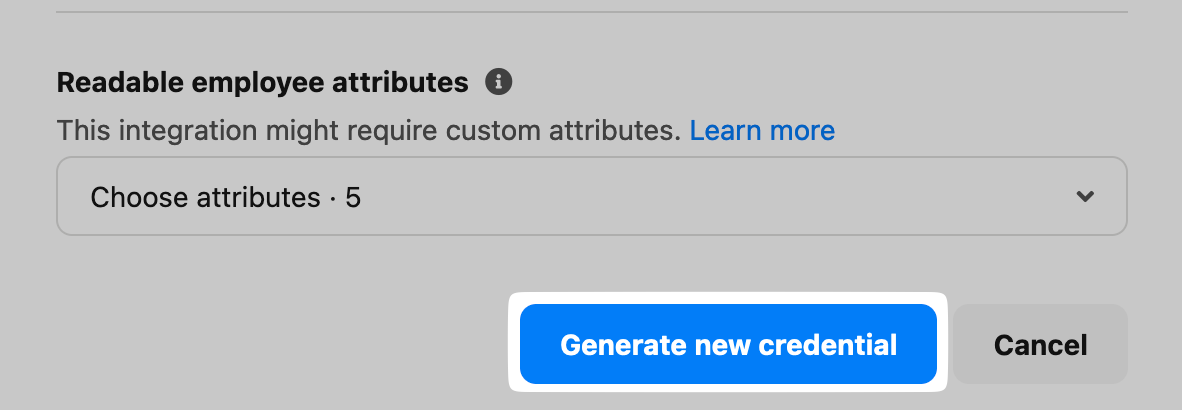
7. Click Generate new credential:
Access Your API Credentials
1. Open the Connected Integrations page:
https://
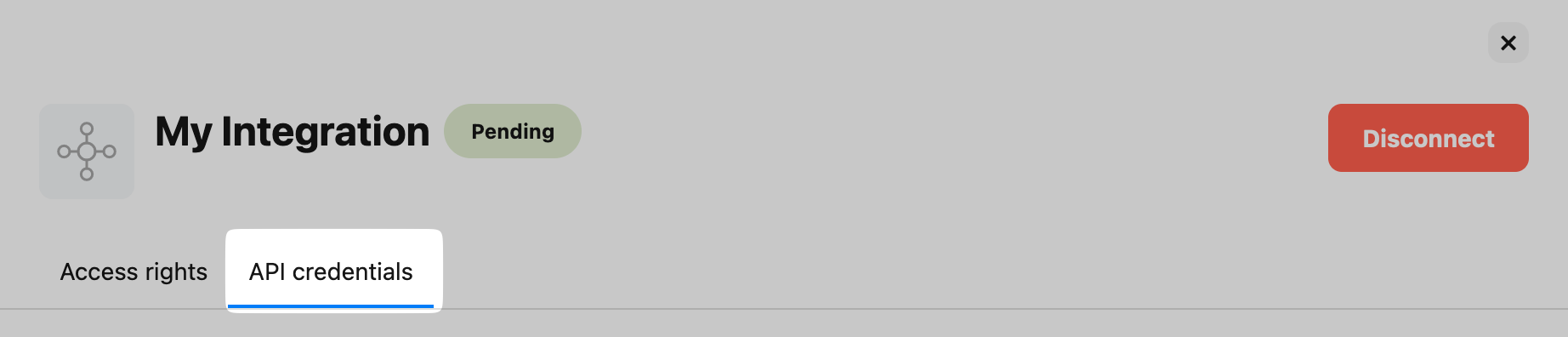
2. Find the API credential you just created and click it. A new window will open on the right.
3. Select the API credentials tab at the top:
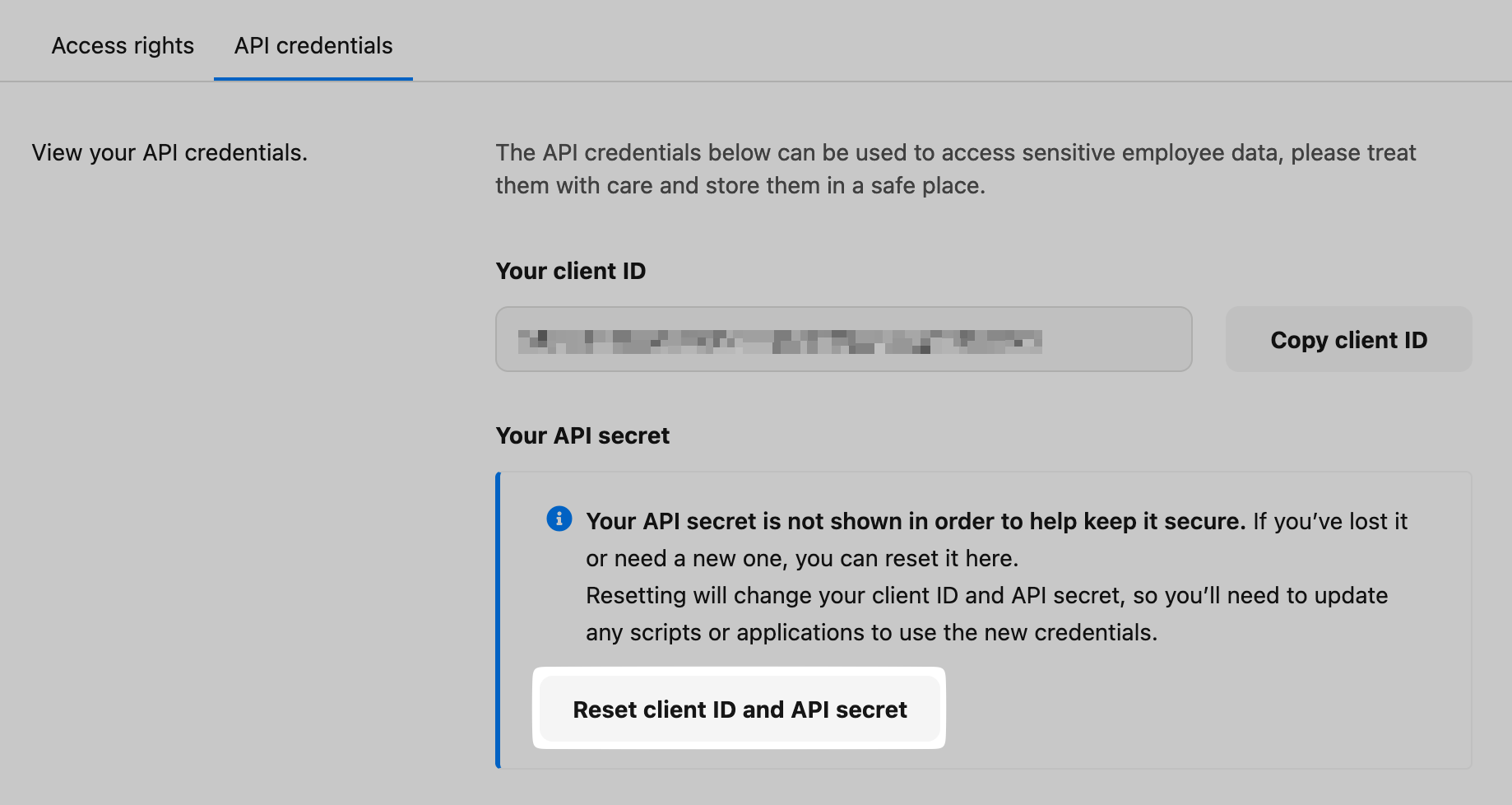
4. Click Reset client ID and API secret:
5. Your API credentials are now visible:
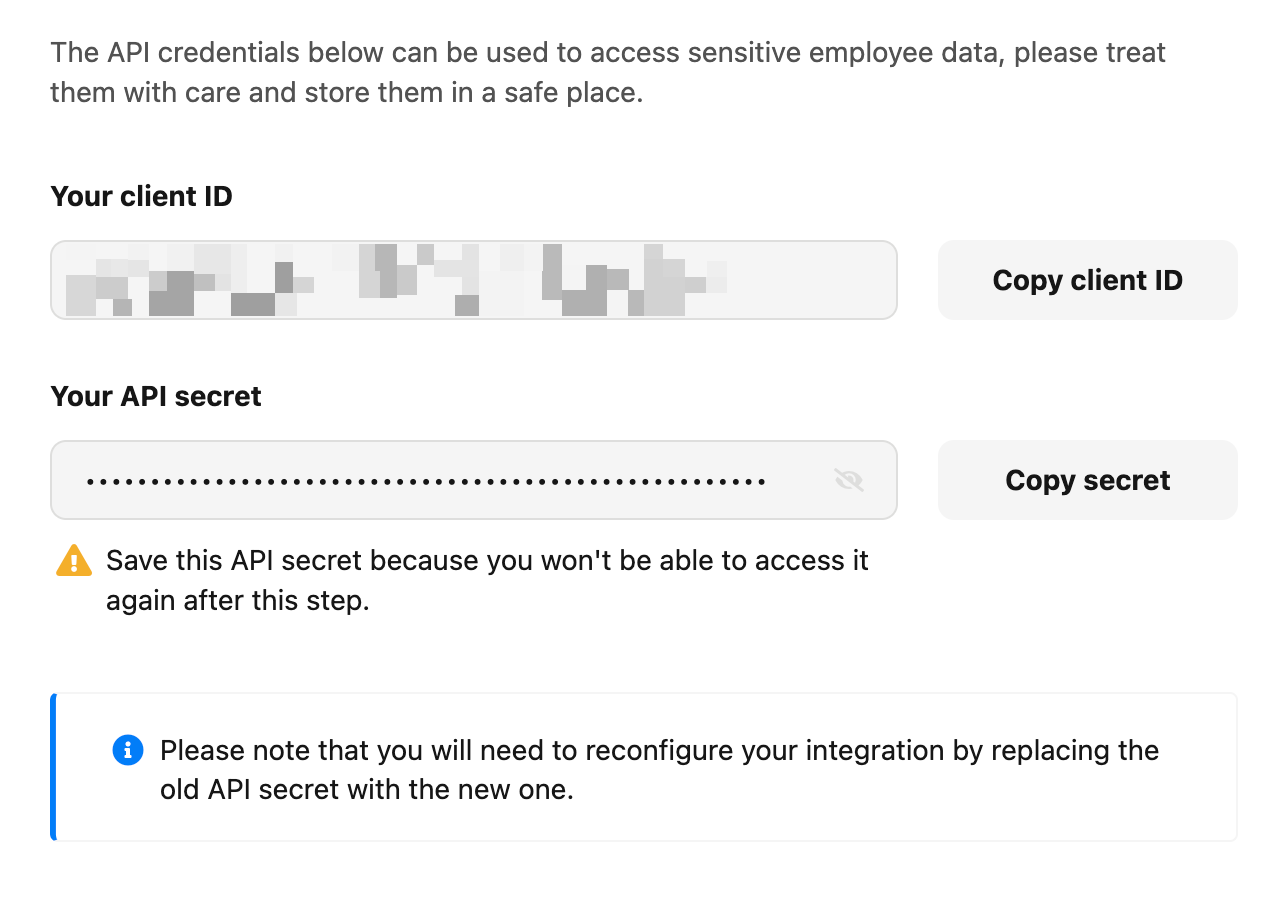
6. Share the Client ID and Client Secret with the TalentUp team to complete the integration setup.