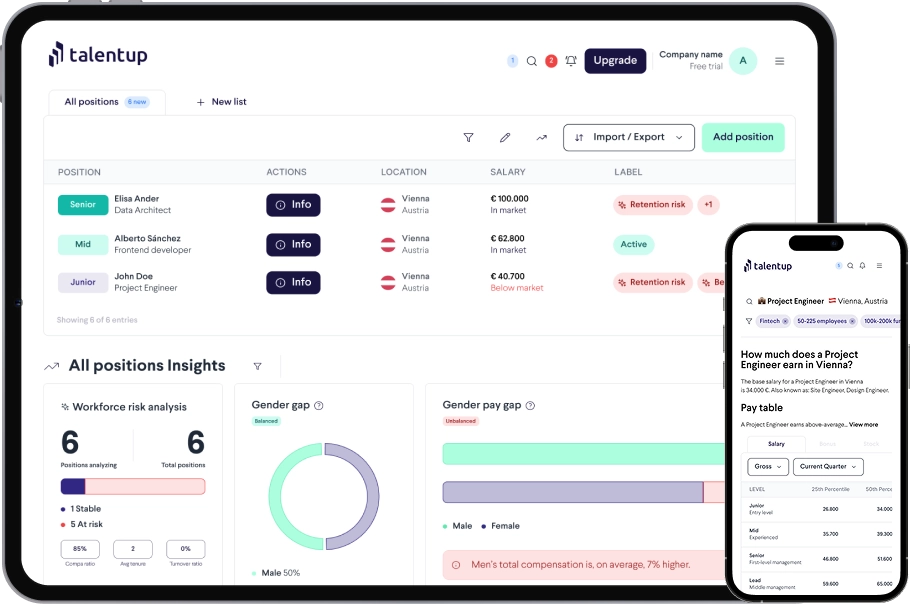
The Dashboard is the first screen you see when you log in to TalentUp. It has two purposes: configuring your company-wide settings so that all benchmarks reflect your organization’s profile, and giving your team a shared workspace to collaborate on salary data. Set this up correctly at the start and every search across the platform will be calibrated to your company automatically.
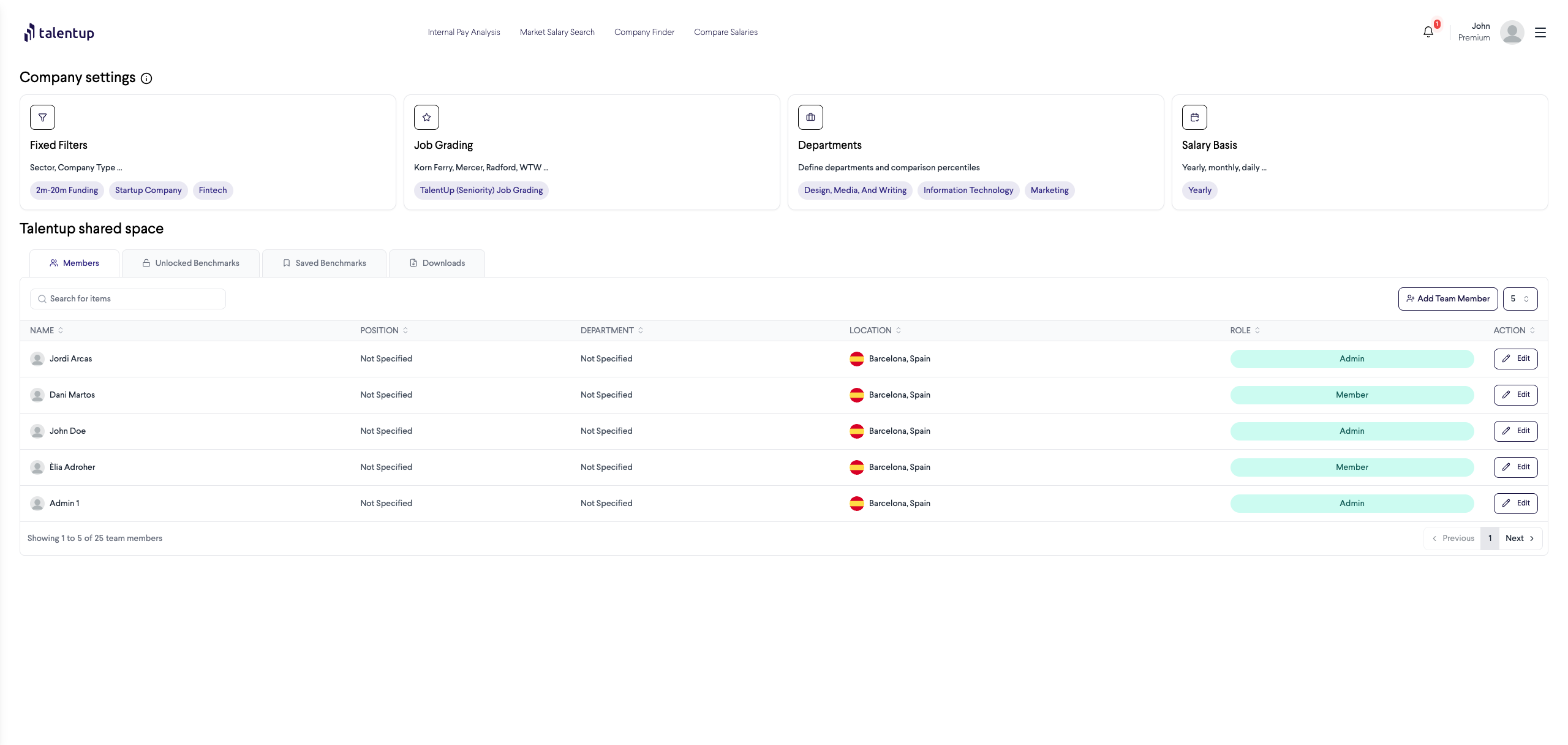
The Company Settings section at the top of the Dashboard contains four configuration cards. These settings are global: any change you make here automatically applies to all salary searches and analyses performed by every team member. Click any card to open the settings modal and configure that option.
1. Fixed Filters
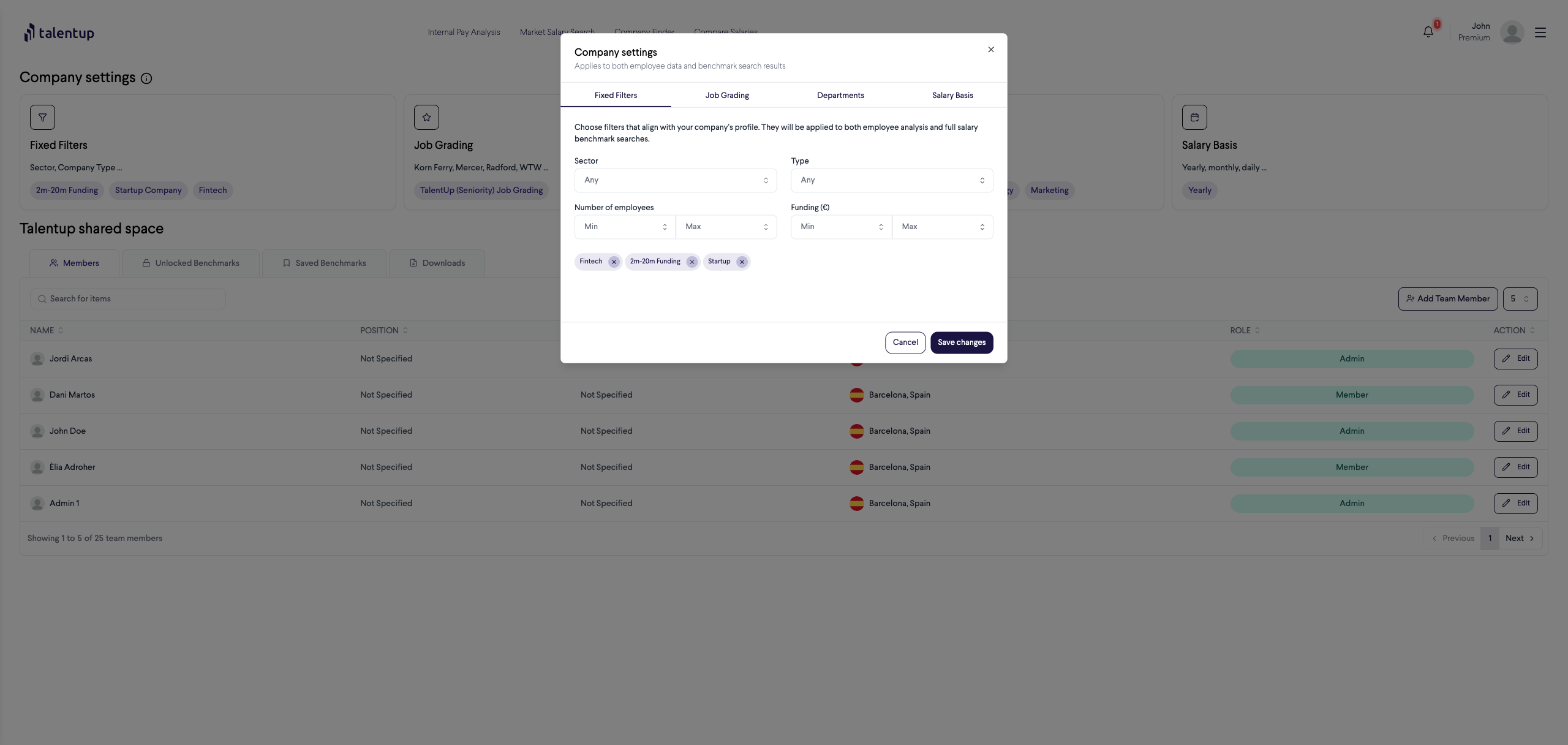
Fixed Filters define the peer group that TalentUp uses when generating salary benchmarks. Instead of seeing the full market, you see data from companies that match your profile. This makes every result more relevant to your actual competitive landscape. Configure:
- Sector: your company’s industry (for example, Fintech, SaaS, Healthcare)
- Type: company type (Startup, Scaleup, International, IT Consultancy, Research/SMB)
- Number of employees: your current headcount range
- Funding (€): the funding range that best describes your company stage
The active tags displayed at the bottom of the card (for example, “Fintech”, “Startup”) show your current selections at a glance so you always know what peer group is active.
2. Job Grading
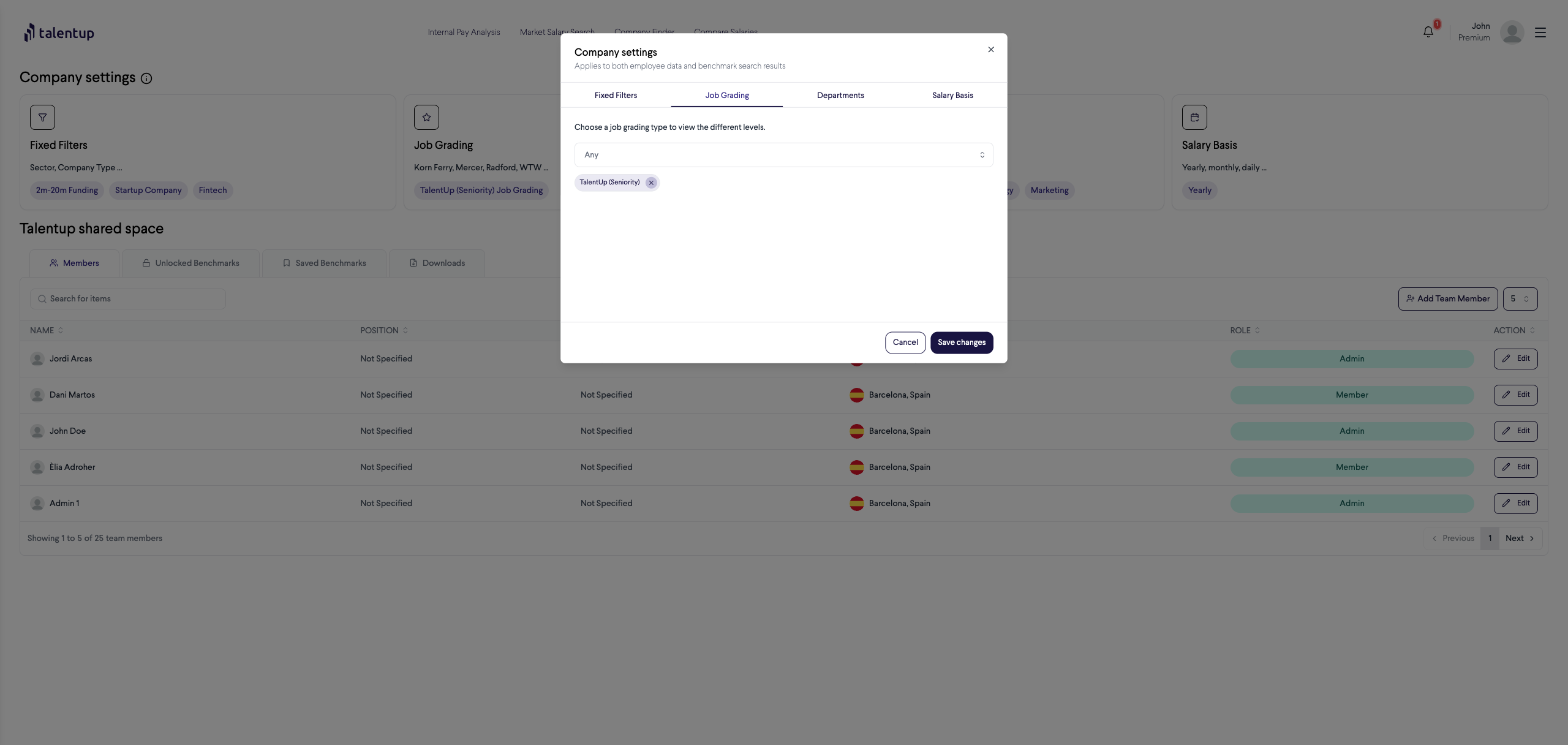
This setting controls which seniority level framework TalentUp uses to break down salary data. Select the framework your organization already uses so that benchmark levels map directly onto your internal job grades. Supported frameworks include:
- TalentUp (Seniority): the default, using Junior, Mid, Senior, and Lead levels
- Korn Ferry: grade-based levels used by large enterprises
- Mercer: IPE-based job evaluation framework
- Radford: widely used in tech and biotech companies
- WTW (Willis Towers Watson): used by global enterprises for job architecture
3. Departments
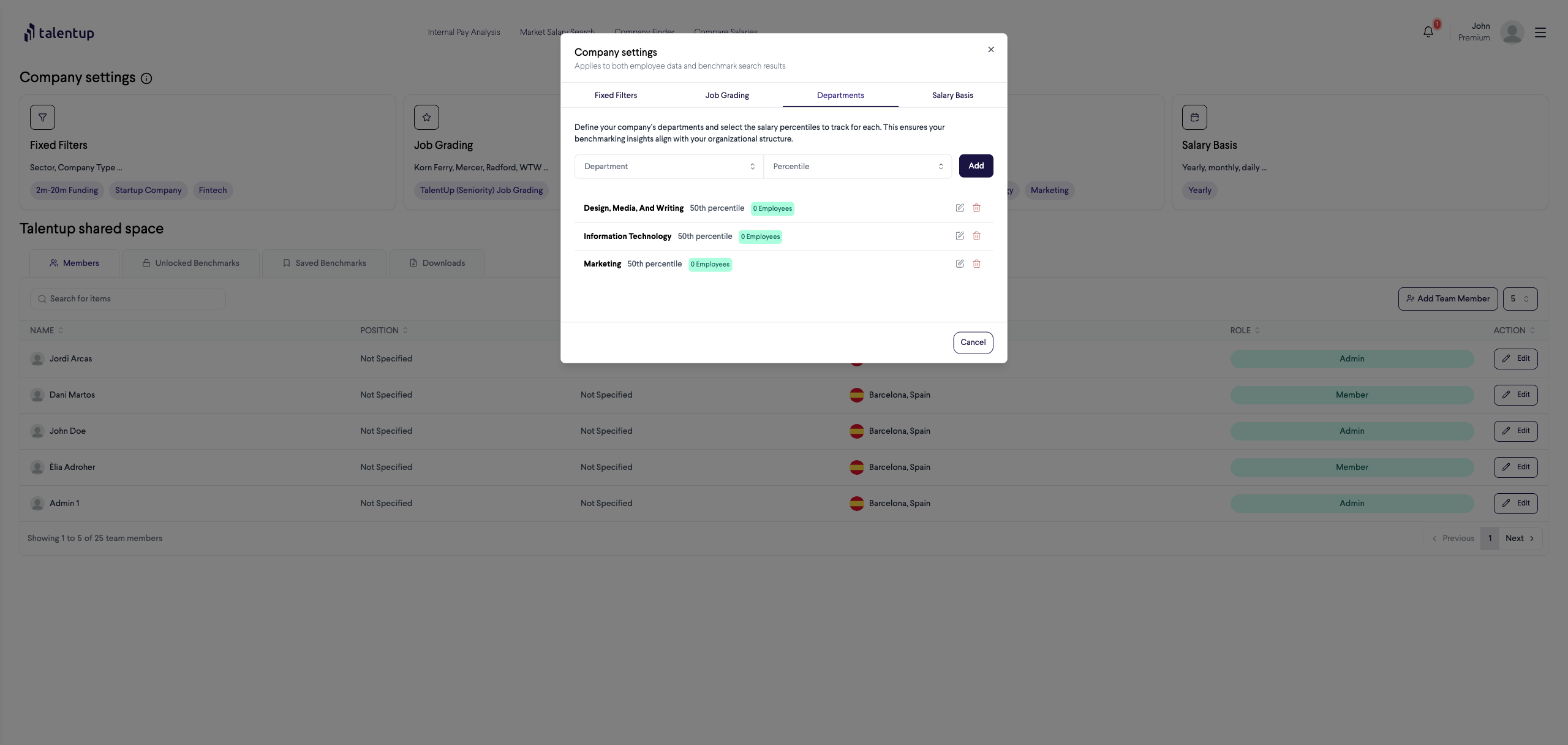
Departments let you define your organizational structure and assign a target salary percentile to each team. This target is central to Internal Pay Analysis: TalentUp compares each employee’s actual pay against the percentile you have set for their department, flagging those who fall significantly below it. For each department you can:
- Set the department name (for example, “Engineering”, “Marketing”, “Design, Media, and Writing”)
- Assign a target percentile (for example, P50 means you aim to pay at the market median for that department)
- Track how many employees belong to each department
Use the Add button to create departments, and the edit/delete icons to update them as your organization evolves.
4. Salary Basis
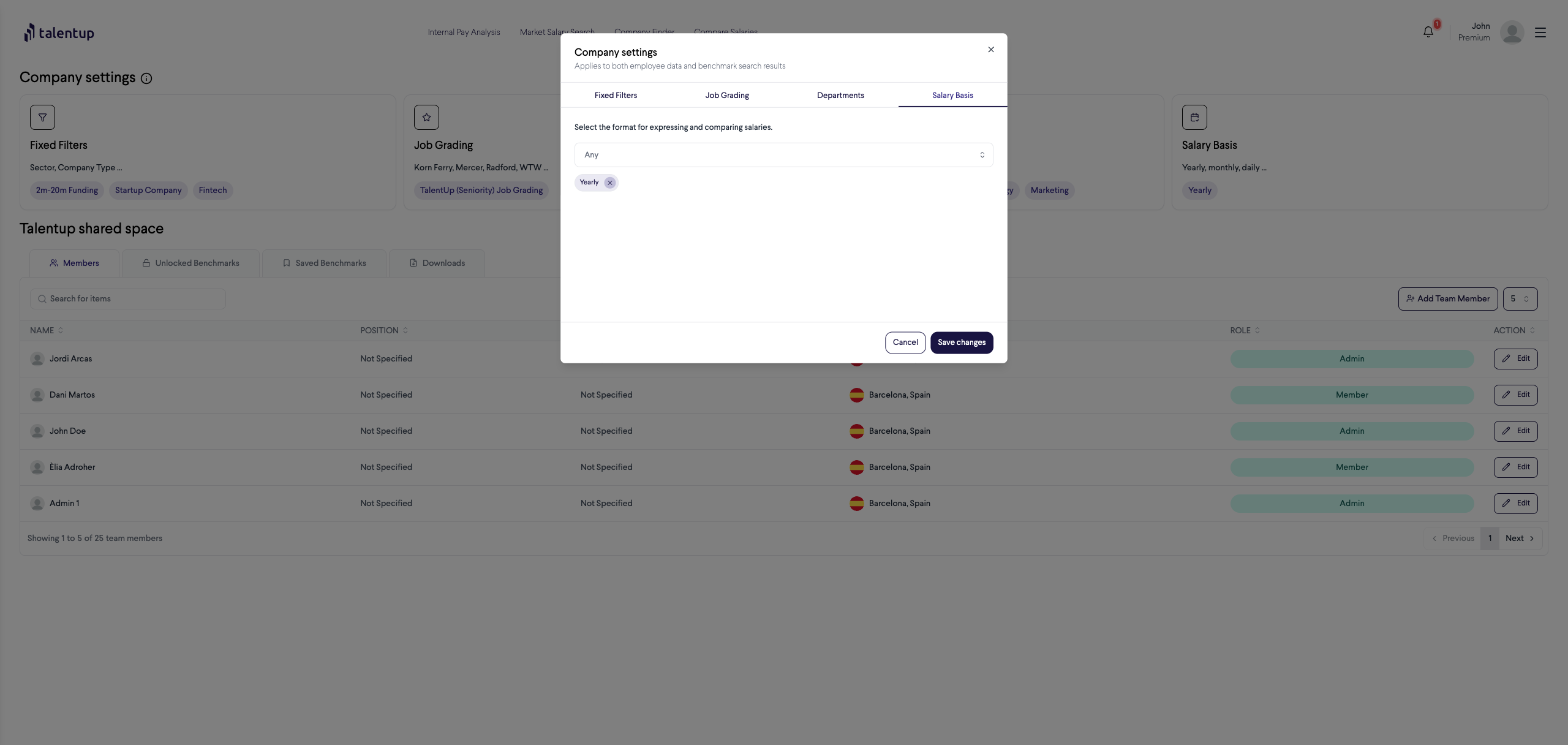
Salary Basis sets how all compensation figures are displayed across the platform. Choose the format that matches how your organization expresses pay:
- Yearly: annual gross salary (most common for full-time roles)
- Monthly: monthly gross salary
- Daily: daily rate (common for freelancers and contractors)
TalentUp Shared Space
The Shared Space section below Company Settings is where your team’s collective benchmarking work is stored and managed. It has four tabs:
The Members tab shows everyone with access to your TalentUp account, including their name, position, department, location, and role. Use the Add Team Member button to invite colleagues. There are two access roles:
- Admin: can manage company settings, invite and remove members, and access all features
- Member: can use all search and analysis features but cannot modify company settings or manage other users
When any team member unlocks a salary benchmark, it becomes available to the entire team at no additional cost. The Unlocked Benchmarks tab gives your team a shared library of all benchmarks purchased to date, preventing duplicate spending when multiple colleagues need the same data.
Team members can bookmark benchmarks they want to return to. The Saved Benchmarks tab shows this curated list, making it easy to build a reference library of the most strategically important roles and locations for your organization.
All export requests and file downloads across the team are tracked here. When a file is ready (for example, an employee compensation export or a benchmark report), it appears in this tab and you receive a notification in the top-right corner of the screen.
Top Navigation
The top navigation bar is visible on every page of the platform and gives you direct access to TalentUp’s four core features:
- Internal Pay Analysis: benchmark your team’s current salaries against the market
- Market Salary Search: look up the market salary for any role in any location
- Company Finder: research salary and workforce data for specific companies
- Compare Salaries: run side-by-side salary comparisons across roles and locations
Click the TalentUp logo at any time to return to the Dashboard.